
The Editor
Tour the PixelFlow editor: the canvas, model search, asset gallery, logs panel, node configuration, run controls, auto-save, and undo/redo.
Everything in PixelFlow happens in the editor — the canvas where you assemble, run, and debug workflows.
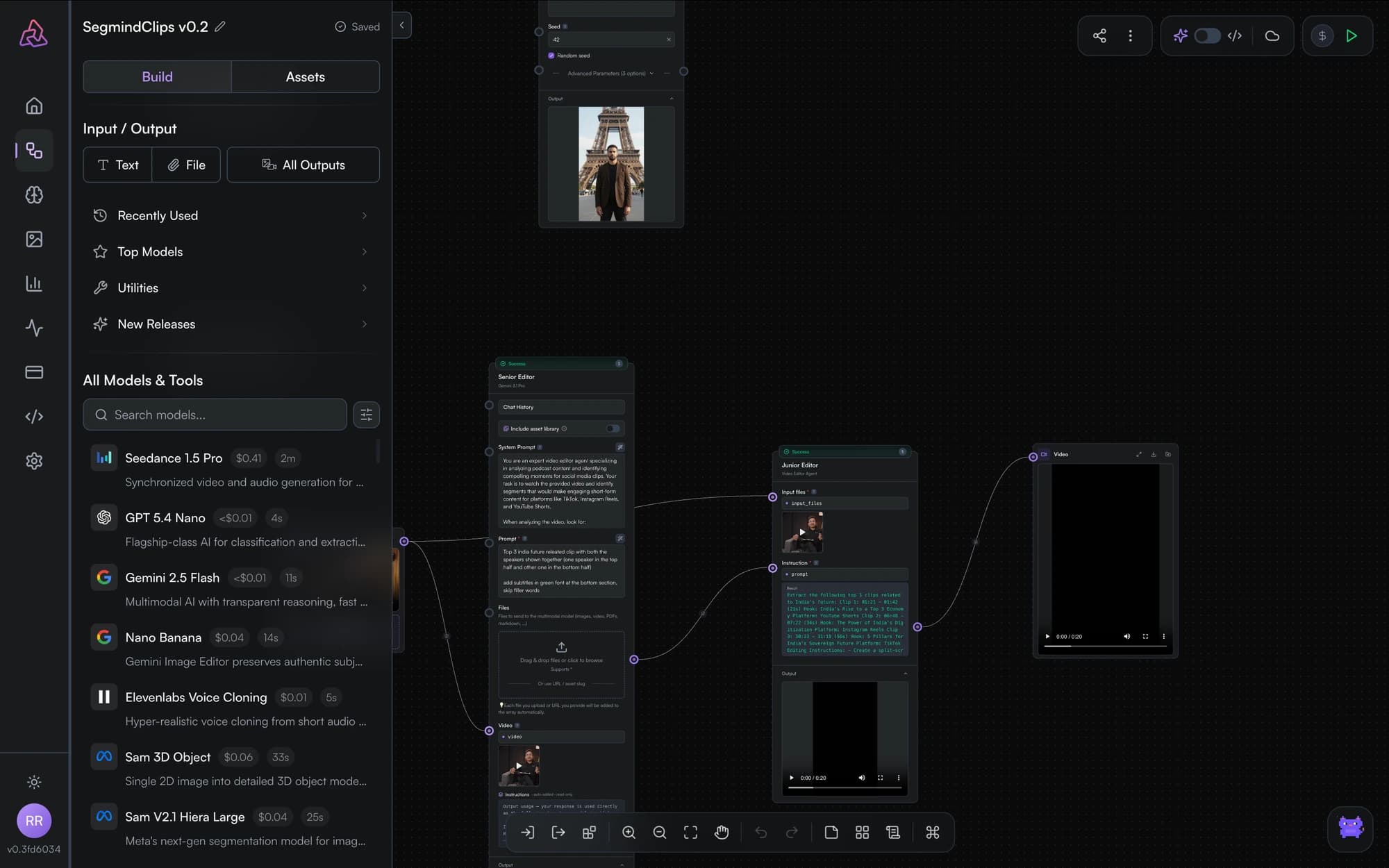
The canvas
The canvas is an infinite surface for your graph. Scroll to move around it — a trackpad's two-finger scroll pans, a mouse wheel zooms — and use the canvas toolbar's zoom in, zoom out, pan, and fit view controls to frame a large workflow. Dragging on empty canvas draws a selection box rather than panning. Nodes can be dragged anywhere; edges re-route automatically.
The sidebar
The sidebar is your toolbox:
- Add nodes — quick-add buttons for Input, Model, Output, Notes, and Utility nodes.
- Model search — search Segmind's full model catalog by name and add any model to the canvas.
- Asset gallery — every image, video, and audio file you've uploaded or generated, ready to reuse as inputs across workflows.
- Logs — a live stream of execution events for debugging runs.
Configuring nodes
Selecting a model node opens its parameter form, generated from the model's schema — prompts, dimensions, seeds, guidance, and whatever else the model accepts. Fields can hold literal values or take their value from an incoming connection.
You can also reference upstream node outputs inside text fields with template expressions like {{ input_1 }} or {{ model_1.images[0] }} — useful for composing prompts from multiple sources.
Every node has an action bar (copy, delete, add a note) and an editable title. Model nodes display an estimated cost per run so you know what a run will consume before you start it.
Running workflows
There are two ways to run:
- Run workflow executes the entire graph in dependency order.
- Run node — the ▶ in a node's hover action bar — executes that one node against its upstream's existing output, so you can test a step without paying for the whole pipeline. It does not run the upstream for you: if an upstream node has no output yet, the run is refused and the logs panel says so. Run the workflow once first, then iterate on single nodes.
Node status is shown live: idle, in‑progress, success, or error, with execution times per node and a progress bar for the run. Use the logs panel to inspect what happened, and the stop button to abort a run in progress.
Iterating on one part of a workflow? Pin finished nodes so re-runs skip them and reuse their cached output.
Auto-save and version conflicts
Workflows save automatically as you edit — there's no save button. The title bar shows the current state: Saving, Saved, or Save failed.
Every save is stamped with a version number. If the same workflow is edited from two places at once (two tabs, or a teammate via sharing), the second save is rejected rather than overwriting the first — the title bar shows Save failed and Failed to save changes appears in the logs panel.
A rejected save is not retried, and the edits in that tab are not merged or recovered. Reload the page to pick up the current version, then redo them. Keep one editor open per workflow.
Undo and redo
Standard undo/redo applies to graph edits — adding, moving, connecting, and deleting nodes — so you can experiment freely.
Next steps
Key Concepts
The PixelFlow mental model: workflows, nodes, edges, runs, templates, published versions, pinned outputs, credits, and teams — defined in one place.
Node Types
The five node types in PixelFlow — input, model, output, utility, and notes — and how data flows between them through ports and edges.