
Model Nodes
Add any Segmind model to a workflow: search the catalog, configure parameters from the model's schema, see cost estimates, and send images to vision LLMs.
Model nodes are the heart of every workflow — each one calls a model from Segmind's catalog: image generation and editing, video, audio, and large language models.
Adding a model
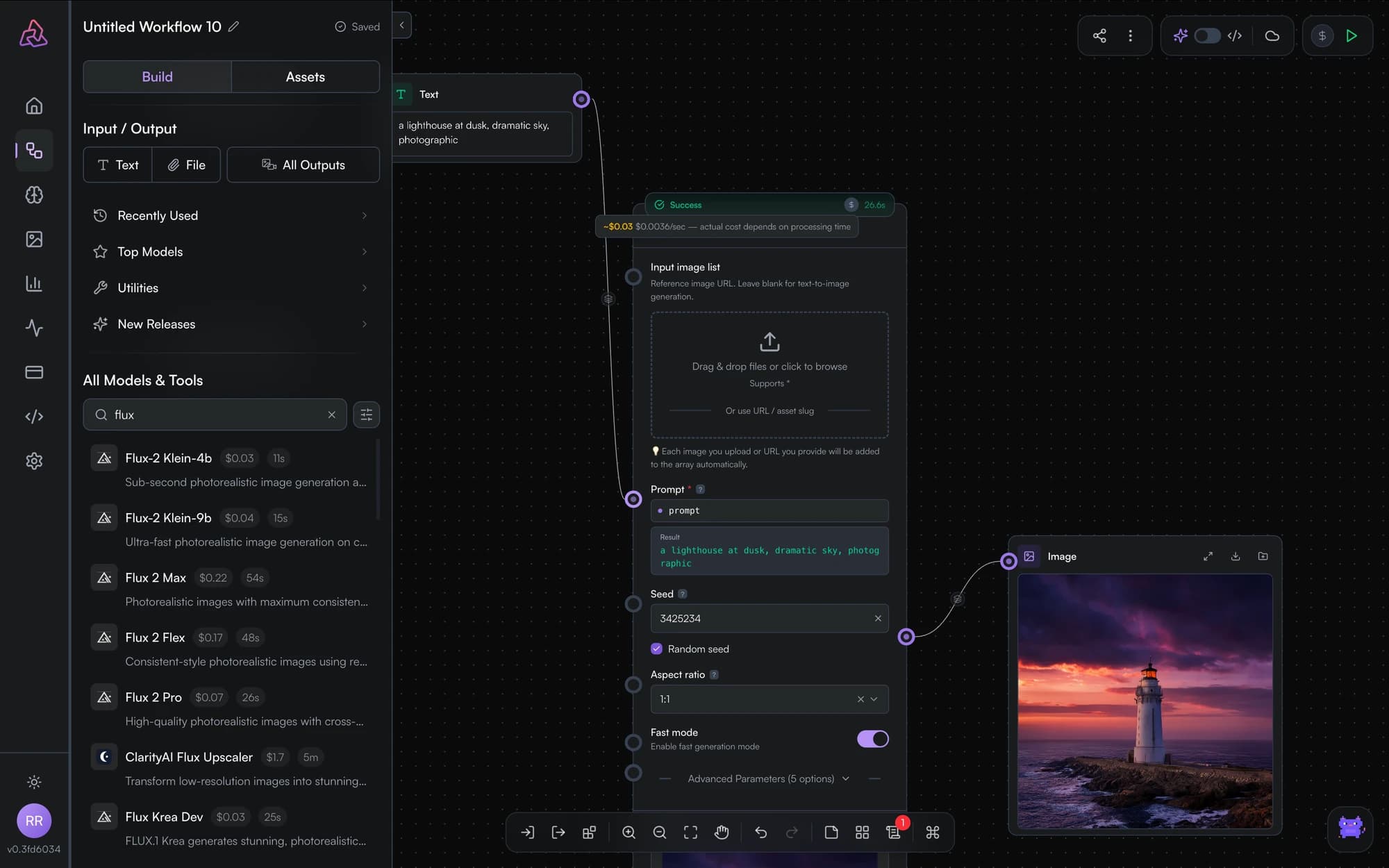
Open the model search in the sidebar and type a model's name. Pick a result to drop it onto the canvas as a configured node.
The parameter form
Each model node renders a form generated from the model's schema — the same parameters documented on the model's API page. Every parameter can be:
- Set directly in the form (a fixed value), or
- Wired from a connection — drag an edge from an upstream node onto the parameter's port, or
- Composed with template expressions — reference upstream outputs inside text fields, e.g.
A photo of {{ input_1 }}, studio lighting.
Cost estimates
Model nodes show an estimated credit cost before you run them, so the price of a run is never a surprise. Actual usage appears in your billing dashboard.
LLMs and vision inputs
Language model nodes support:
- System prompts and chat history — chain LLM nodes into multi-turn conversations. See LLM chat history.
- Vision inputs — connect image inputs (or upstream image outputs) to vision-capable LLMs to describe, caption, or reason about images. Multiple images are supported.
Outputs
Model nodes display their results inline — image galleries, video and audio players, text. Outputs flow onward through the node's output ports; some models expose multiple ports (e.g. a video plus its final frame).
Status, time, and pinning
While running, nodes show live status (in&8209;progress, success, error) and report execution time when done. Successful nodes can be pinned to cache their output across runs — see pinning and caching.
Want the same model with different settings side-by-side? Duplicate the node from its action bar and fan out the same input to both.
Node Types
The five node types in PixelFlow — input, model, output, utility, and notes — and how data flows between them through ports and edges.
Input Nodes
Feed data into PixelFlow workflows: text, number, dropdown, multi-select, JSON, and boolean inputs, plus file uploads with an inline inpainting mask tool.