
Input Nodes
Feed data into PixelFlow workflows: text, number, dropdown, multi-select, JSON, and boolean inputs, plus file uploads with an inline inpainting mask tool.
Input nodes supply the values your workflow runs on. They come in two flavors — text and file — each with several modes.
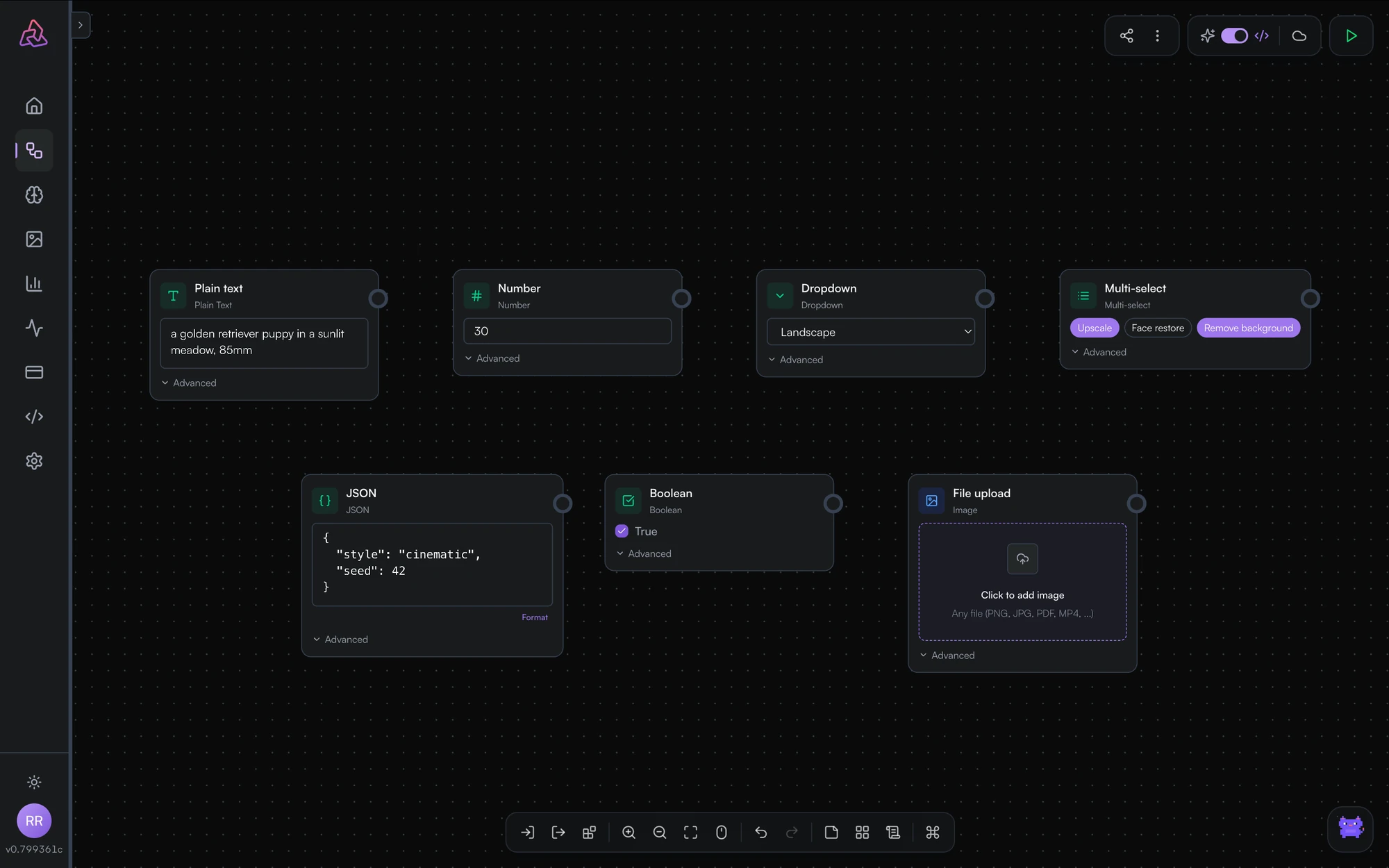
Finding the Advanced controls
A node's mode, and everything that makes it an API parameter, live under an Advanced disclosure at the bottom of the node:
- Input Type — the mode. On a file input the same control is labelled File Type.
- Use as API Input — whether callers can set this input on the published API.
- API Key Name — the JSON field name they send it as.
Creative mode hides all three. The editor has two modes, switched with the toggle in the top bar: Creative (the sparkle, the default) and Pro. In Creative mode input and output nodes render without an Advanced section at all. If you're looking for the mode picker and there's no sign of it on the node, in its action bar, or in the sidebar, flip that toggle to Pro.
Text inputs
| Mode | Use it for |
|---|---|
| Plain text | Prompts and free-form strings |
| Number | Numeric parameters, with optional min/max/step |
| Dropdown | One choice from a fixed list you define |
| Multi-select | Several choices from a fixed list |
| JSON | Structured payloads passed through as-is |
| Boolean | On/off switches |
Dropdown and multi-select options are defined on the node, which keeps published APIs constrained to valid values.
File inputs
File inputs accept uploads by drag-and-drop or file picker:
| Mode | Accepts |
|---|---|
| Any file | Anything a downstream model can consume — images, video, audio, PDFs, and more |
| Image / Video / Audio | Hints the expected media type |
| Inpainting | An image plus a mask you paint directly in the node |
Uploaded files are stored in your asset gallery and passed downstream as URLs.
The inpainting mask tool
Set File Type to Inpainting and the node's drop zone narrows to Upload image — PNG, JPG, or WebP. There is no masking canvas yet at this point, and that is expected: a mask needs a picture to paint on.
Once the image is in, the node grows a Draw Mask button. It opens the Mask Editor inline on the node — not a modal, not a separate screen — showing your image under the instruction "Click and drag to paint mask areas". Brush over the regions you want the model to regenerate, then Apply to keep the mask, or Cancel to discard it and leave the image untouched.
An inpainting file input has two output ports rather than one: the image and the mask leave the node separately. Wire each to the matching parameter of an inpainting model.
Video coming soon
Painting an inpainting mask inside the input node
https://segmind-resources.s3.amazonaws.com/docs/pixelflow/nodes/inpaint-mask-tool.mp4
Key names: exposing inputs as API parameters
Give an input node a key name to make it a named parameter of your published API — the key name becomes the JSON field callers send. Inputs without a key name keep their canvas value when the workflow runs as an API.
Prefer input nodes over hard-coding values in model forms for anything you'll want to change per run — they're what become your API's parameters when you publish.
Model Nodes
Add any Segmind model to a workflow: search the catalog, configure parameters from the model's schema, see cost estimates, and send images to vision LLMs.
Output Nodes
Display workflow results with output nodes — automatic rendering for images, video, audio, text, and 3D — and name them to define your API's response fields.