
Publish a Workflow as an API
Turn any PixelFlow workflow into a production REST API: name your inputs and outputs, publish a version, test it in the console, and call it from your code.
Any workflow can become a REST endpoint. Callers send your named inputs as JSON, Segmind runs the graph in the cloud, and they get your named outputs back — your whole pipeline behind one API call.
Name your inputs
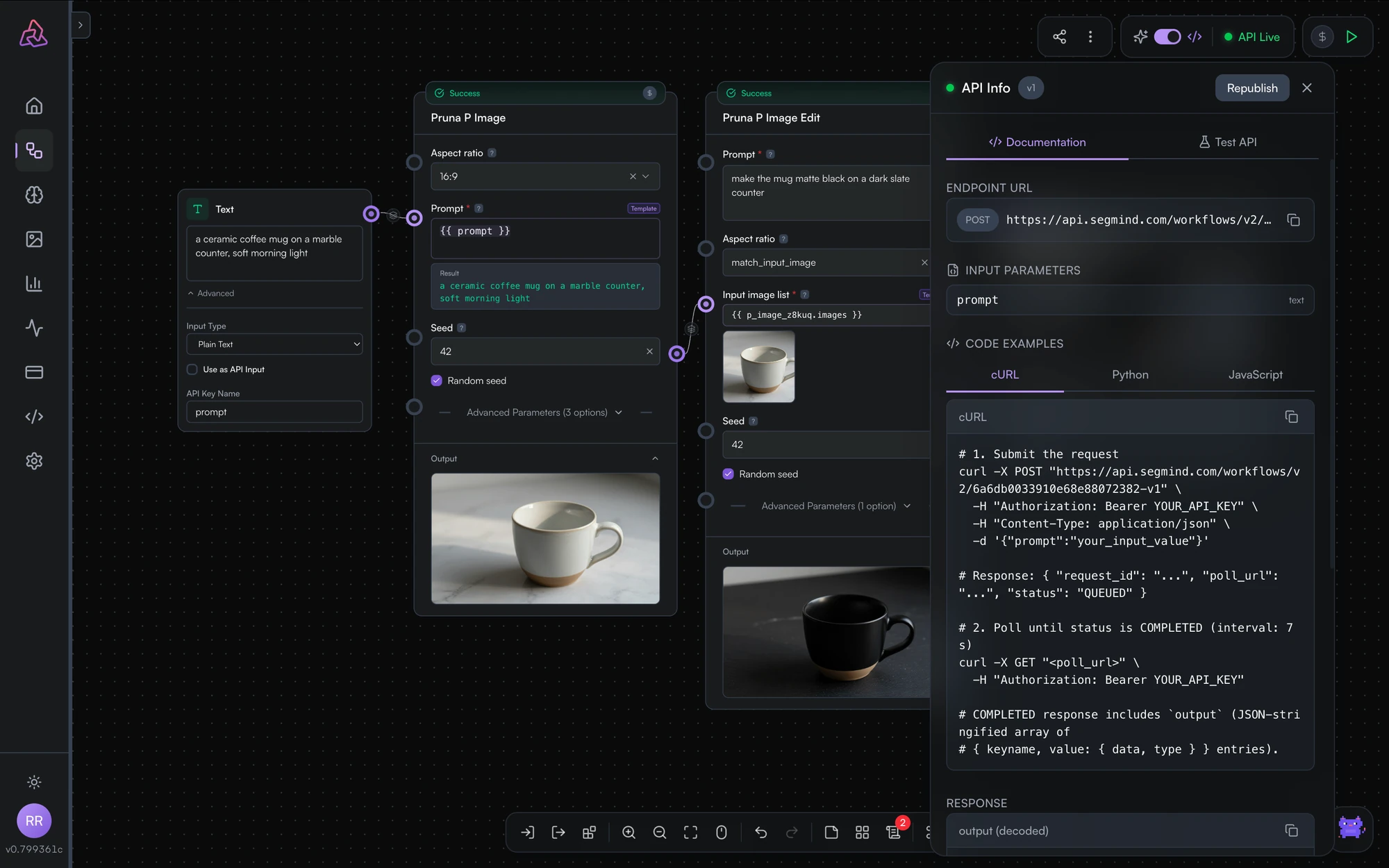
Give each input node that callers should control a key name — that becomes the JSON field name in API requests. An input named prompt is called with {"prompt": "..."}. Inputs without key names keep their canvas values.
The field is API Key Name, at the bottom of the node under the Advanced disclosure, alongside the Use as API Input checkbox. If you don't see an Advanced section, switch the top bar's mode toggle from Creative to Pro — Creative mode hides those controls. See input nodes.
Name your outputs
Do the same for output nodes: each key-named output becomes a field in the API response.
Publish
Publish from the cloud icon in the editor's top bar — it's unlabelled, but its tooltip reads Publish as API. Confirm in the dialog that follows.
The dialog itself doesn't show your endpoint. Once the workflow is published, open the API Info panel to get the endpoint URL, the request and response contract derived from your named nodes, and ready-to-copy code samples (cURL, Python, JavaScript).
Test it
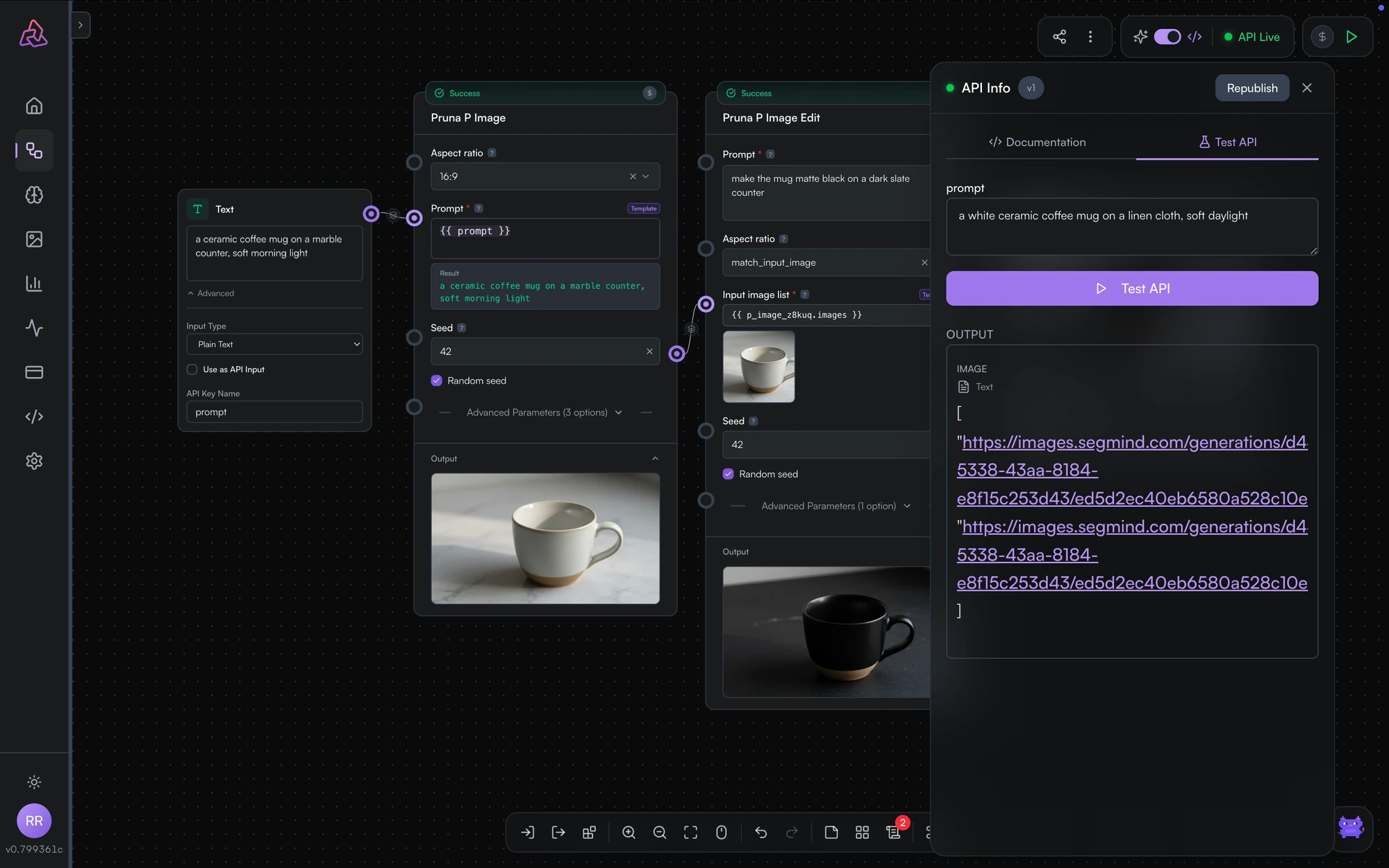
Use the built-in test panel to fill in your inputs, send a real request, and inspect the response — without leaving the console.
Versions
Each publish creates a new immutable version — v1, v2, and so on. Published versions keep serving exactly what you published, so you can keep editing the workflow freely and publish again when ready. The version is shown beside the API status in the editor.
Working with image arrays
If an image input is connected to a parameter that accepts an array, callers can pass an array of image URLs to process multiple images in one request:
{
  "image_list": [
    "https://example.com/image1.png",
    "https://example.com/image2.png",
    "https://example.com/image3.png"
  ]
}
This pairs naturally with fan-out: the array fans out inside the workflow and each image is processed in parallel.
Calling your API
Published workflows run asynchronously: submit a request, poll for status, fetch the result. Full request/response shapes and code samples are in the API reference.
Published-workflow runs consume credits from your account like any other model usage — see pricing and billing.
Templates
Start from working AI workflow templates: browse the PixelFlow gallery, clone any template into your workspace, and customize it — no blank-canvas problem.
Workflow API Reference
Call a published PixelFlow workflow over REST: submit to POST /workflows/v2/{slug}, poll the status URL, and fetch results — with cURL, Python, and JavaScript examples.